PanelDial
$9$16−44 %$16Buy

PanelDial · Blender add-on

Every add-on,
one key away.

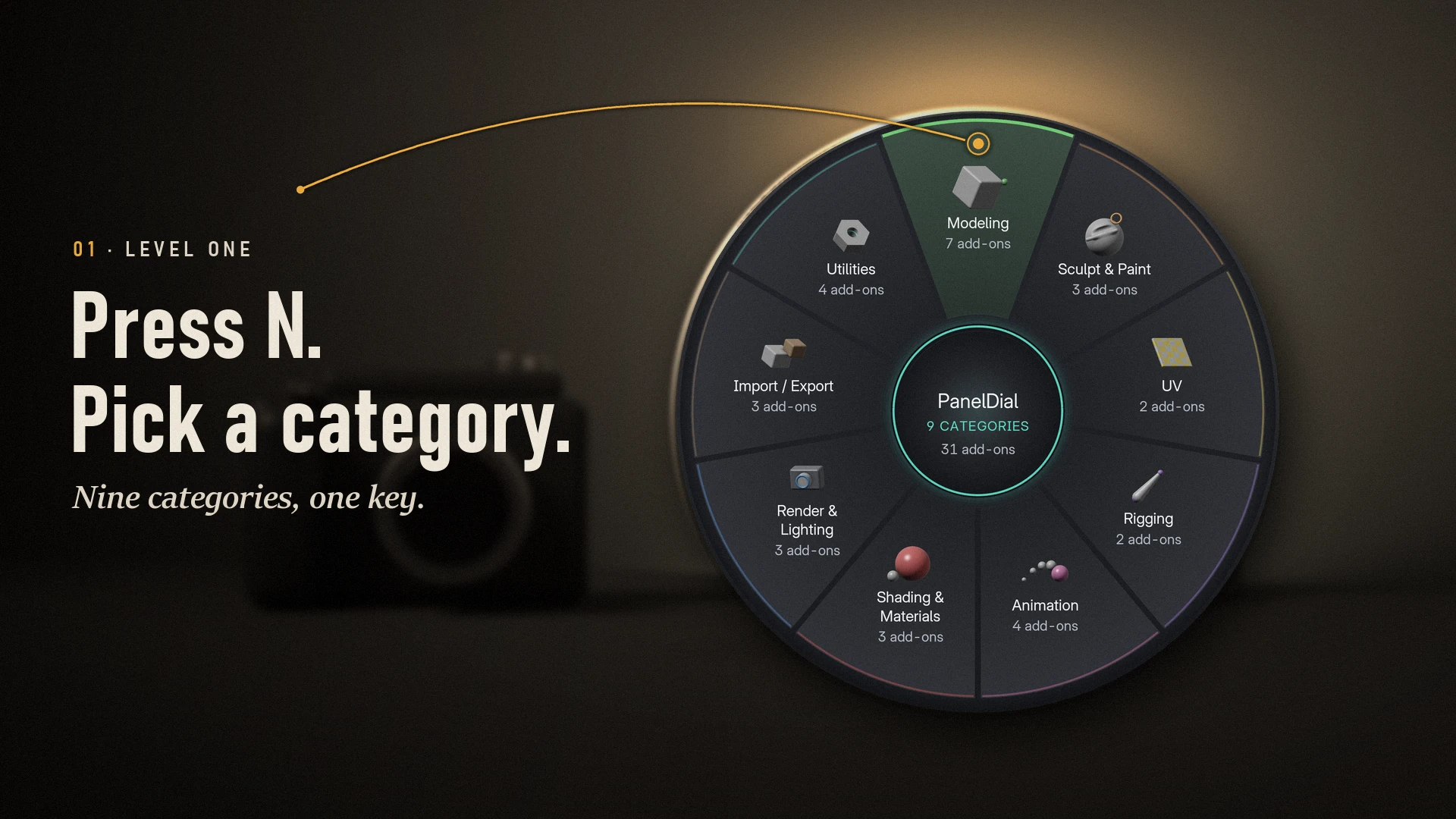
Press N. The dial opens.

For Blender users with many add-ons: press N and a dial replaces the long column of add-on tabs. Pick a panel; it opens in the sidebar.

  • 1,328 add-ons recognised and filed into folders
  • 4.2 – 5.3 Blender versions
  • 1 click brings the old sidebar back

Captured in Blender

Works with the add-ons you have

The add-ons in the pictures are examples.
PanelDial shows only your installed add-ons, and finds them by itself.

It finds the sidebar tabs of your installed add-ons by itself and, on the first start, sorts them into folders using a built-in list of 1,328 known add-ons and name rules. It adds no add-ons, works offline and never installs or downloads anything.

Why PanelDial

120 tabs → 10 folders

From a wall of tabs to one dial.

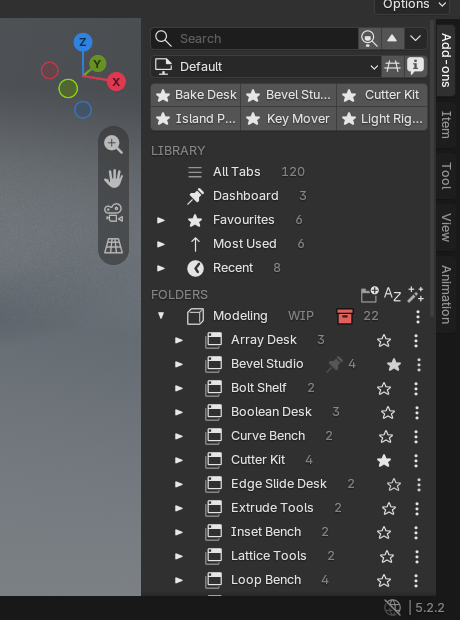
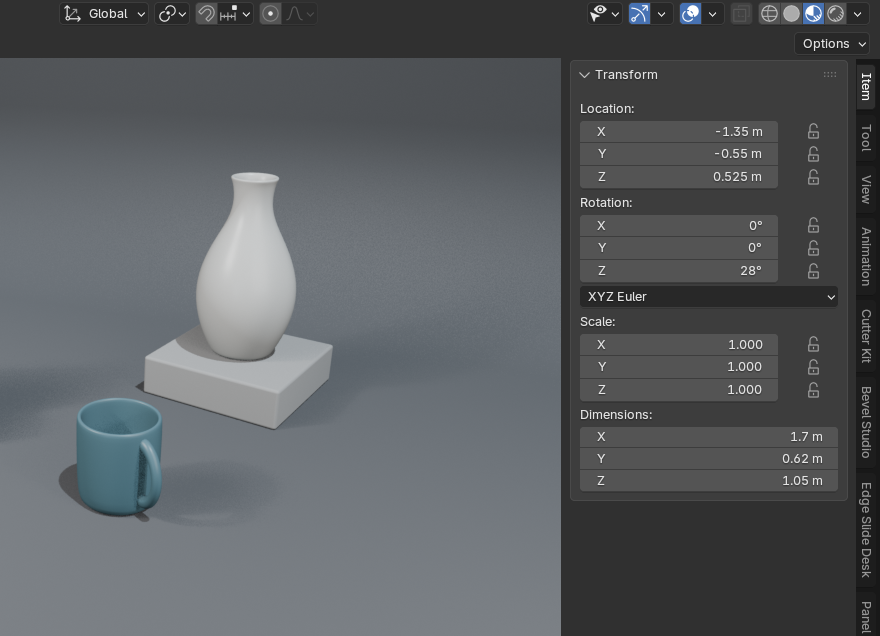
BeforeBefore: Blender's sidebar with 120 add-ons as sideways tabs, about 8 on screen.
Blender's sidebar: 120 add-ons as sideways tabs, about 8 on screen.
With PanelDialWith PanelDial: the same 120 add-ons on one dial, sorted into folders.
The same 120 add-ons on one dial, sorted into folders on the first start.

Three modes

Dial, Cascade or Simple.

The same folders in all three.

  1. DialThe default. N opens the dial in the middle of the editor.
  2. CascadeA list navigator in the middle of the editor; hover unfolds each branch.
  3. SimpleN stays as it is; the tree lives in the sidebar.

HowPreferences ▸ Mode, or the switch-style button at the upper right of the dial

At a glance

Five frames, the whole idea.

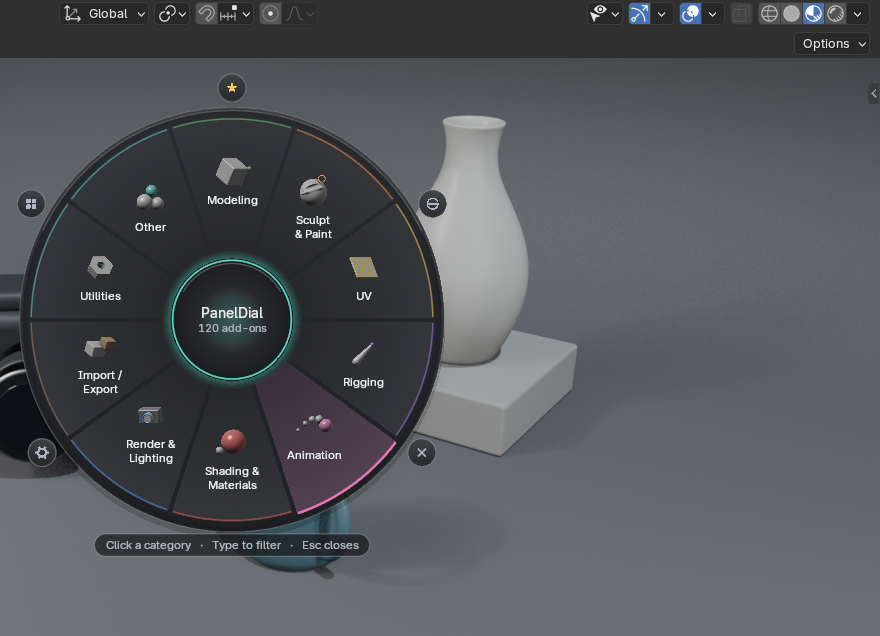
Press N in the 3D viewport and the dial opens with your add-ons grouped into categories.
01 Press N in the 3D viewport and the dial opens with your add-ons grouped into categories.
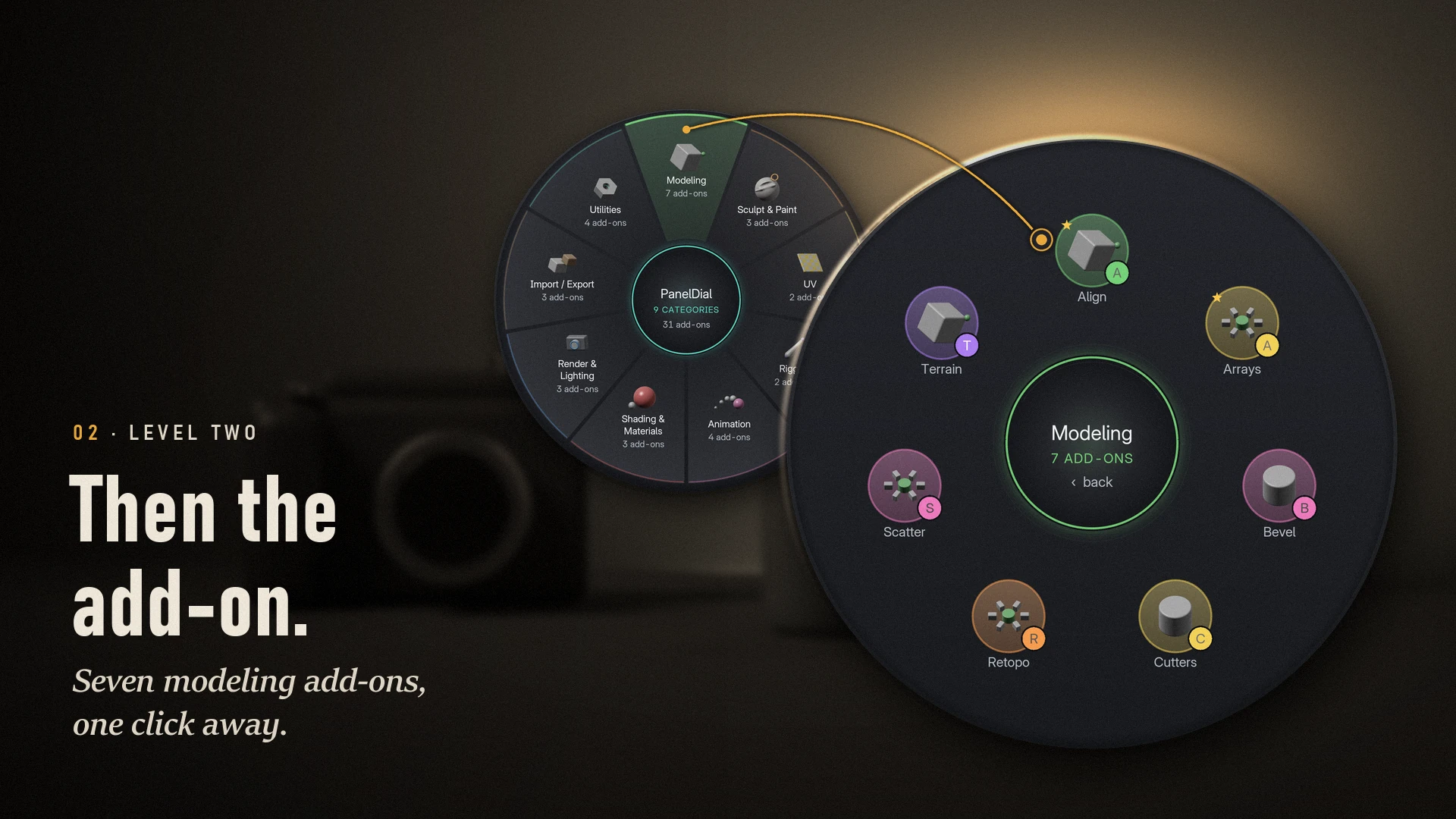
Pick a category and the dial shows its add-ons; right-click goes back a level.
02 Pick a category and the dial shows its add-ons; right-click goes back a level.
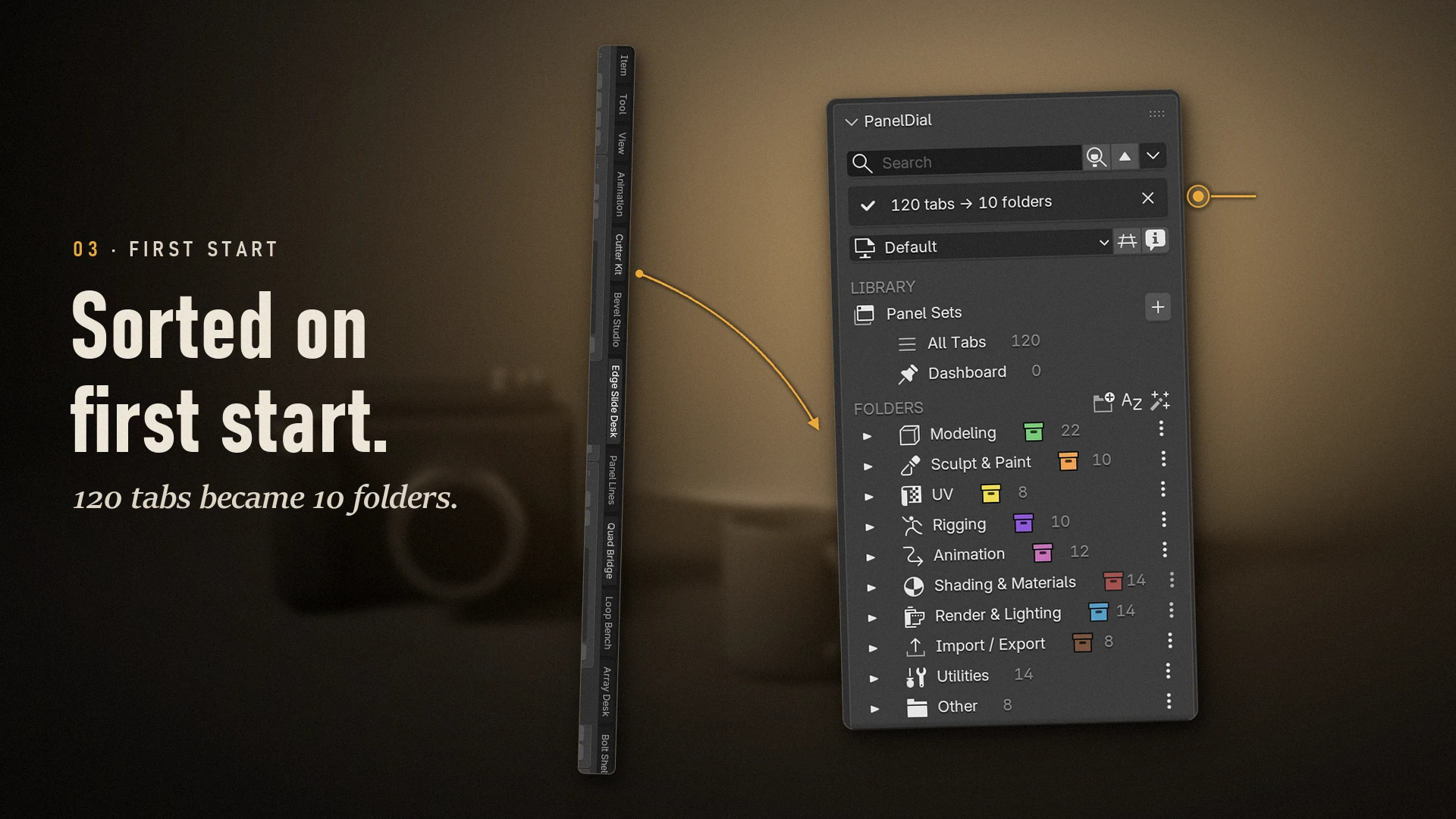
On first start PanelDial sorts your add-on tabs into folders, here 120 tabs into 10 folders.
03 On first start PanelDial sorts your add-on tabs into folders, here 120 tabs into 10 folders.
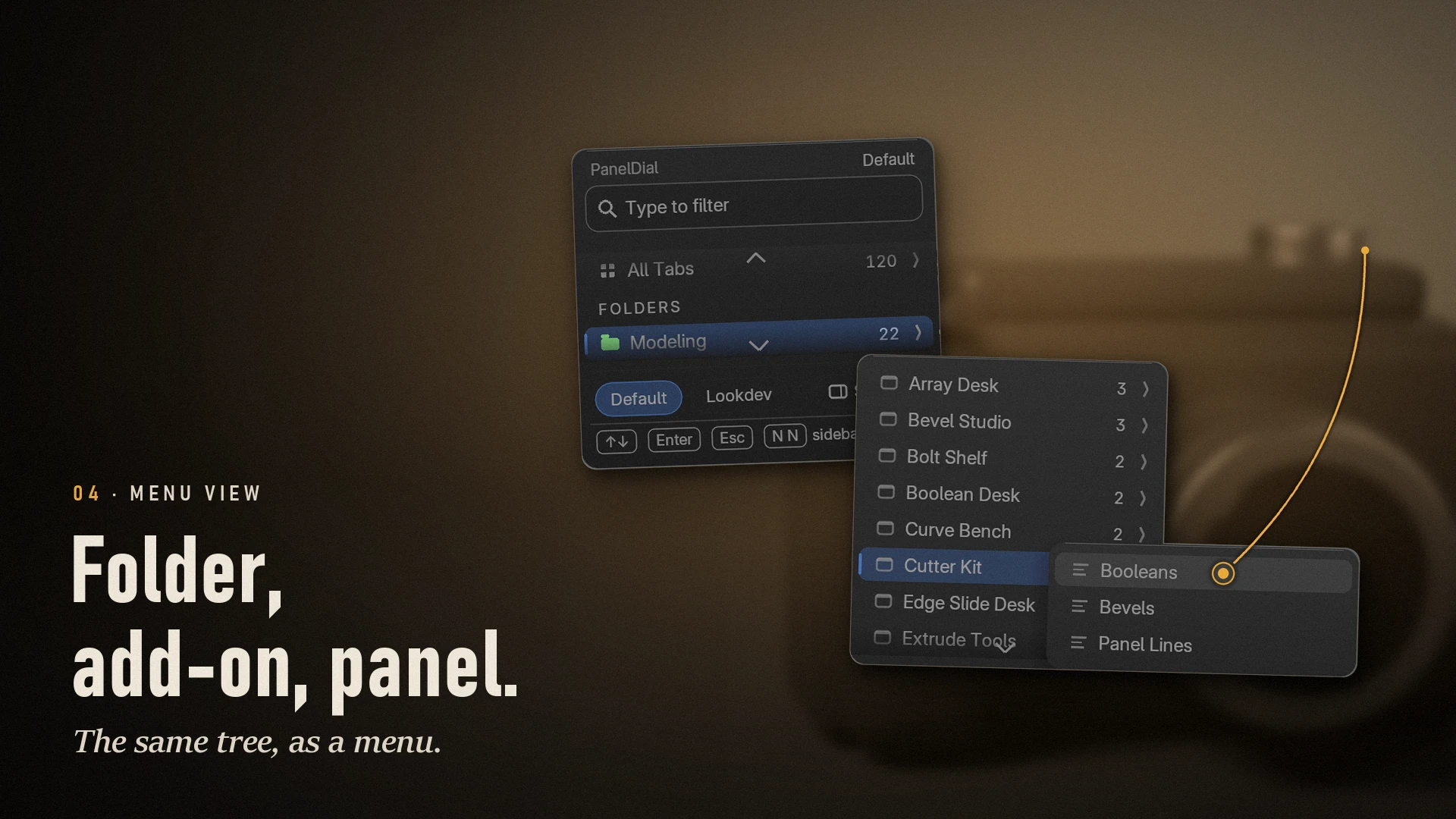
The menu view shows the same tree as cascading columns: folder, add-on, panel.
04 The menu view shows the same tree as cascading columns: folder, add-on, panel.
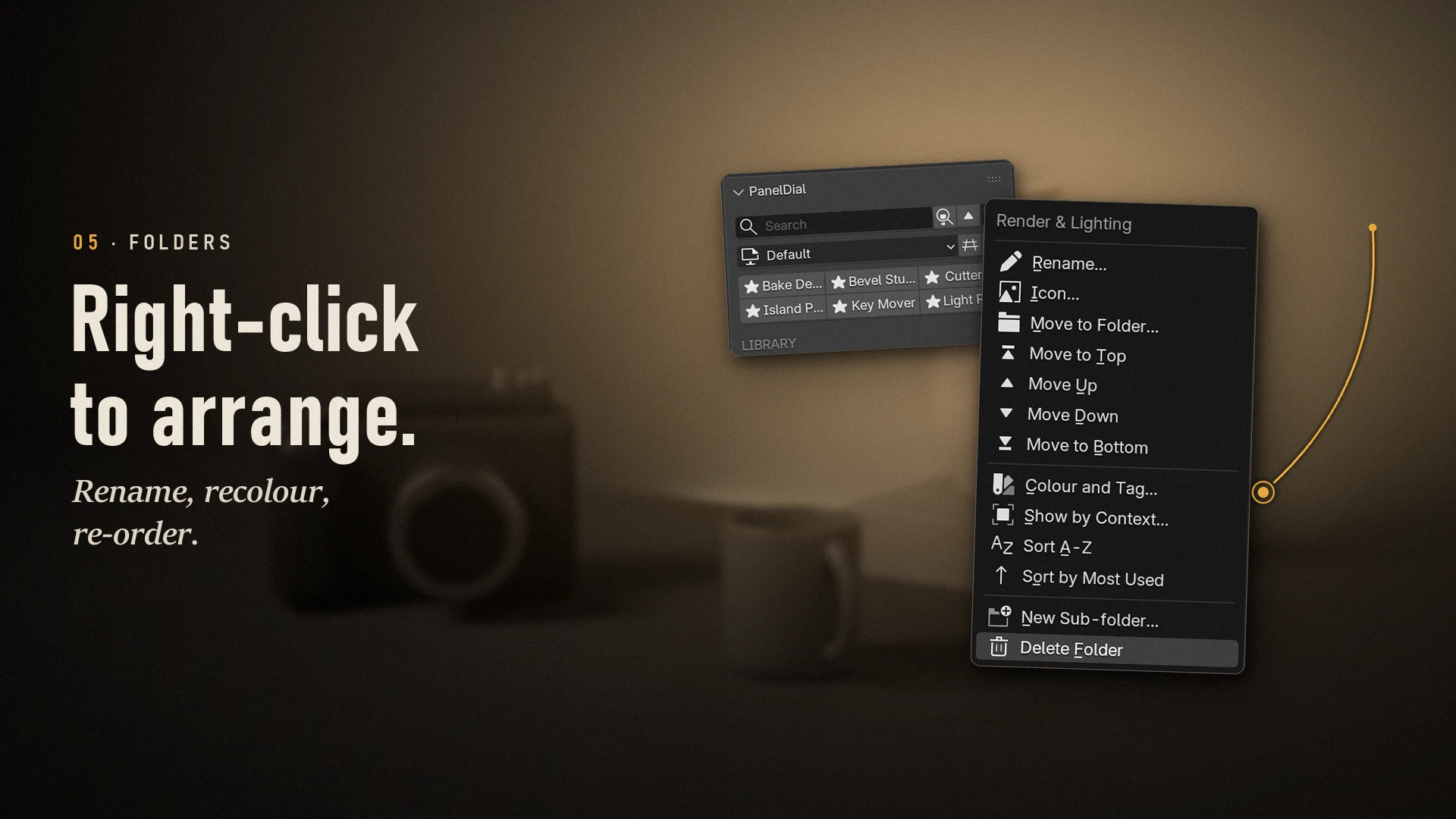
Right-click a folder to rename it, give it an icon, move it, or set its colour and tag.
05 Right-click a folder to rename it, give it an icon, move it, or set its colour and tag.

01 · The dial

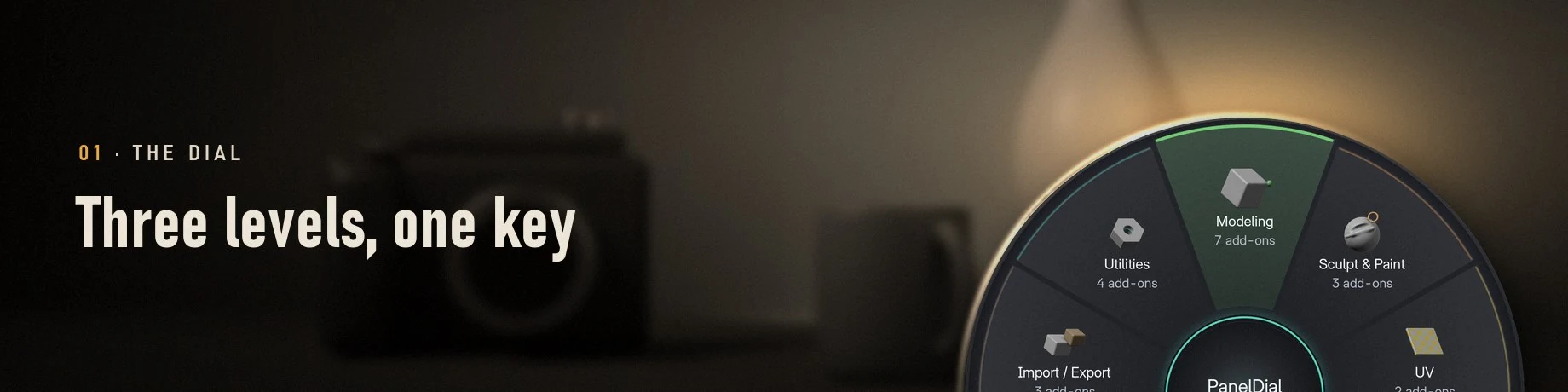
Three levels, one key

With the sidebar closed, N opens the dial in the middle of the editor. Press N twice quickly and you get Blender's classic sidebar instead.

Categories, add-ons, panels

Your folders are wedges with a picture and a count. Click one and its add-ons fan out on a ring; click an add-on for its panels, then a panel to open it. The centre is a safe zone.

HowN open · click to go in · centre, right-click or Backspace back · Esc close
Folders, then that folder's add-ons, then their panels, and back out again.

Many add-ons: two rings and pages

Ten add-ons fit on one ring; more fill a second ring, and a pager appears when a category holds even more. Tile names never shrink below a readable size.

Howmouse wheel, ← → or PageUp PageDown change the page

Twenty-two add-ons in one category: two rings, and the wheel or the arrow keys turn the page.

Type to filter

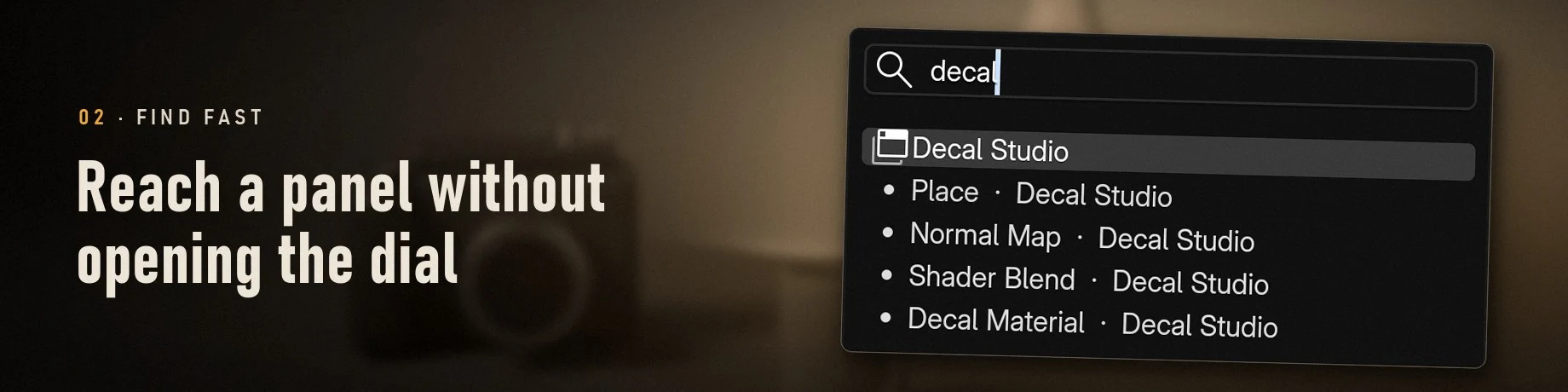
Start typing at any level. Matching add-ons and panels from every category appear on the ring, so you do not need to know where a panel lives.

Howtype · Enter opens the first match · Esc clears, a second Esc closes

Typing narrows the ring to the matches; the count is in the centre.

Favourites on the dial

The ★ button above the dial shows only the add-ons you starred, as one ring. Star a tab once and it is one click away from then on.

How★ next to a tab in the tree adds it · ★ above the dial shows them

The ★ button shows only your starred add-ons.

Dashboard: panels from different add-ons in one view

Pin the panels you use together, for example bevel, UV pack and bake, and open them as one sidebar view. Up to 64 pins.

Howtree: ▸ on a tab, then the pin icon · Dashboard button on the dial or in the tree

Pin panels from three add-ons, then open them as one view from the tree or from the dial.

Panels open in the sidebar

A pick opens Blender's own right sidebar on that add-on's tab, panel in view and expanded. Per add-on you can choose Popover at Cursor or Pin to Dashboard instead.

HowPreferences ▸ Open Panels · per add-on: tab menu (⋯) ▸ Open Panels

One add-on opens at the cursor; every other add-on opens in the sidebar.

Several add-ons together in one sidebar

Ctrl + click several add-ons and they stack in the right sidebar in pick order, each under its own header. Save the group as a Panel Set and reopen it with one click.

HowCtrl + click adds · header folds · × removes · Panel Sets ▸ + saves the group

Three add-ons stacked in the right sidebar, each under its own header.

02 · Find fast

Reach a panel without opening the dial

Two shortcuts and one search field for when you already know what you want.

Quick Palette

A small popup under the mouse with your Dashboard, favourites, most used tabs, folders and profiles. Click one and the sidebar opens on it.

HowShift Alt N, or the Quick Palette button in the tree

Dashboard, favourites, most used tabs, folders and profiles under the mouse.

Search and Jump

The search field filters the tree as you type. Jump searches every tab and panel of the editor and opens the result in the sidebar, whatever tab it was showing.

Howsearch field at the top of the tree · Jump: Ctrl Alt N or the magnifier button

Search filters the tree as you type; Jump finds any panel and shows it in the sidebar.

Most Used, Recent and the Quick Strip

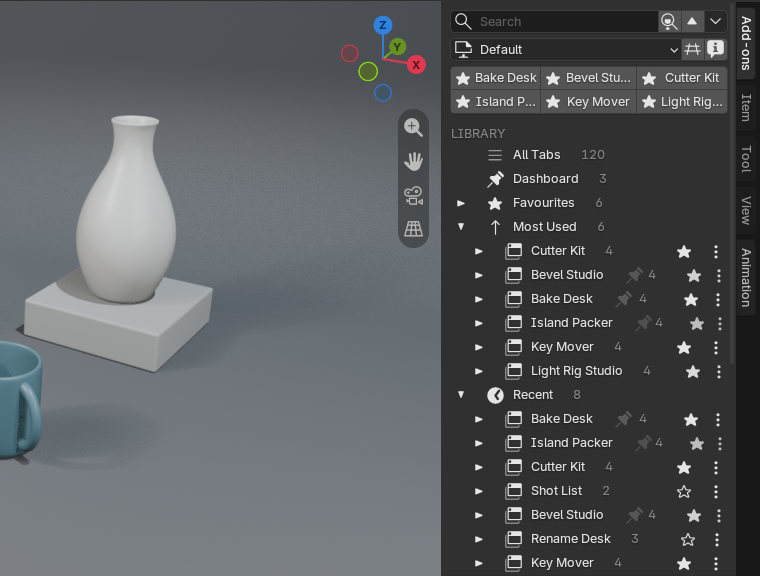
PanelDial counts which tabs you open, on your computer only. Most Used and Recent list them, and the Quick Strip puts favourites and recent tabs as buttons on top of the tree.

HowLibrary rows in the tree · Quick Strip: tree menu (⌄) or Preferences

Quick Strip on top, then Most Used and Recent. Counts stay on your computer.

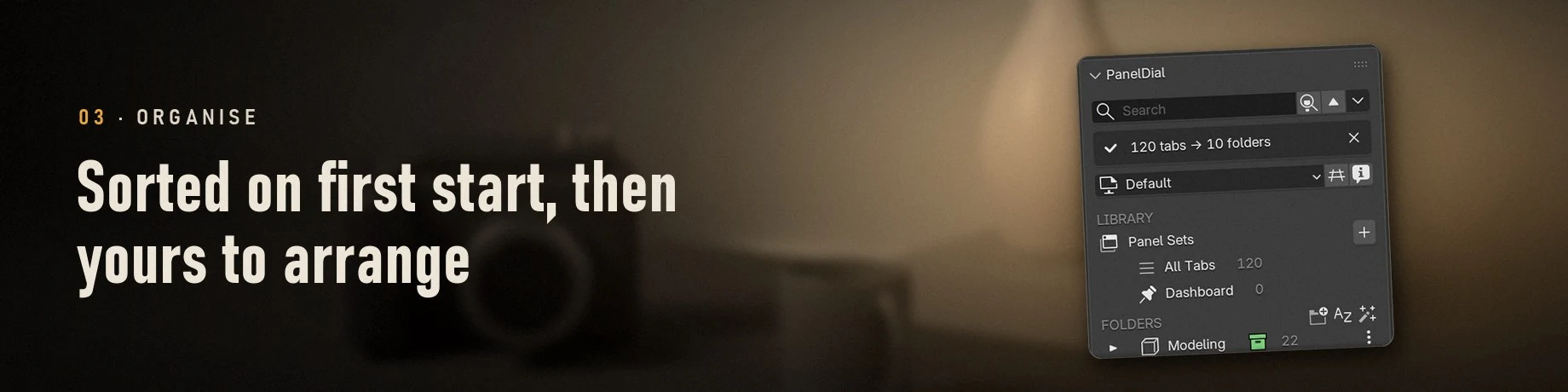
03 · Organise

Sorted on first start, then yours to arrange

PanelDial files your tabs on the first start. After that the layout is yours: what you move by hand stays put.

Auto Organise

Tabs are sorted into ten folders such as Modeling, UV, Rigging and Shading. 1,328 add-ons are known by id; the rest are read by name. New add-ons go straight into their folder.

Howruns once by itself · again: tree menu (⌄) ▸ Auto Organise…

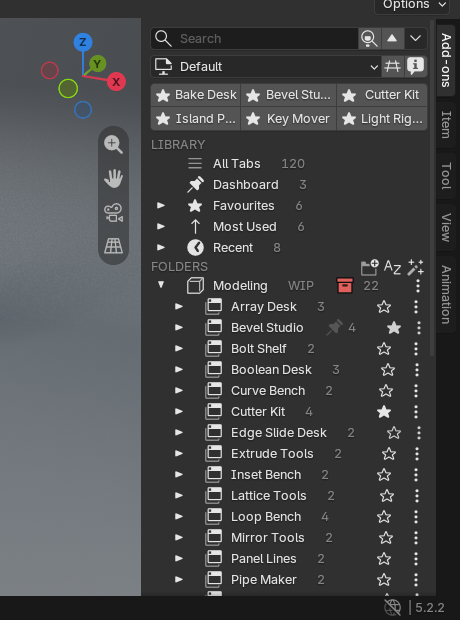
Before: 120 tabs in one column. After the first start: ten folders, nothing to set up.

Move to Folder, sub-folders, one tab in several folders

Move a tab with a type-to-search list. Folders can hold folders, and a tab can show in two folders at once. Deleting a folder never deletes tabs.

Howtab menu (⋯) ▸ Move to Folder or Also Show in Folder… · tree menu (⌄) ▸ New Folder

Move a tab with a searchable list, or show it in two folders at once.

Colours, tags, icons, names and order

Give a folder one of eight colours and a short tag such as WIP. The colour marks it in the tree, the cascade list and the dial. Your own names never rename the add-on.

Howitem menu (⋯) ▸ Colour and Tag… · Icon… · Rename… · Move Up / Down

Eight colours, short tags, icons and your own names. The same colours mark the dial wedges.

Context folders

A folder can open by itself on a mode or object type: Modeling in Edit mode, Rigging in Pose mode. Leave the mode and the folder folds again.

Howfolder menu (⋯) ▸ Show by Context… · all rules off: tree menu (⌄) ▸ Context Folders

Edit mode opens Modeling, a selected camera brings Render & Lighting, Pose mode brings Rigging.

Profiles that follow your workspace

A profile is a complete layout. Link one to a workspace and the tree changes with the workspace; one button makes profiles for Blender's default workspaces.

Howprofile button ▸ New Profile… · Use for Workspace · Make Workspace Profiles

One profile per default workspace. Change workspace and the tree changes with it.

Add-on Insights

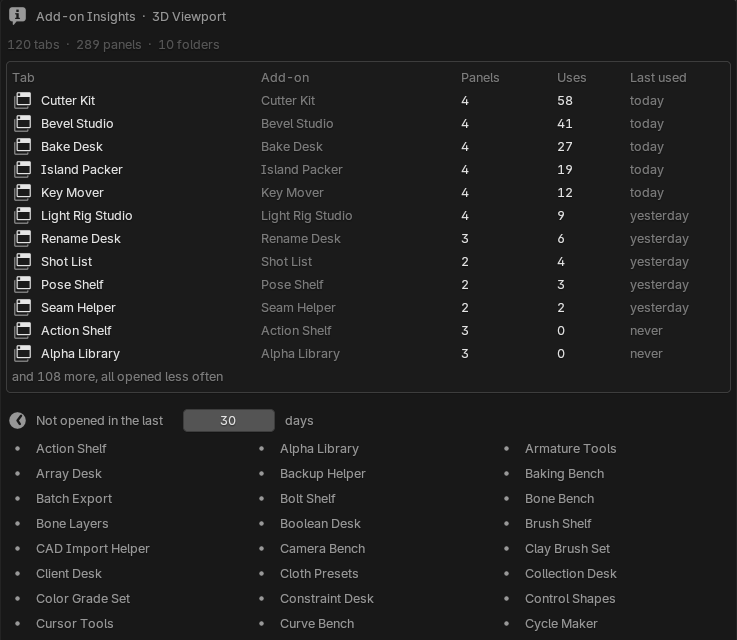
A read-only list of every add-on tab with its panel count, how often you opened it and when, plus the tabs you have not opened in 30 days. It never disables anything.

Howⓘ button next to the profile button

Use counts, and the tabs you have not opened in 30 days.

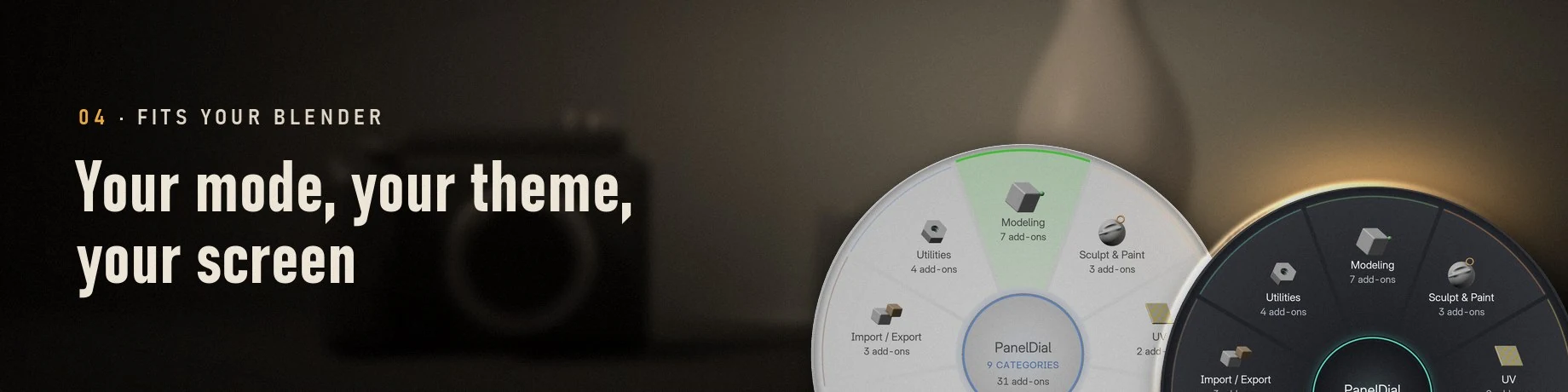
04 · Fits your Blender

Your mode, your theme, your screen

The same folders drive three interfaces, and the look follows your Blender settings.

Cascade navigator

Hover a row and its contents unfold as a branch beside it. Diagonal moves towards an open branch do not switch it, and the whole list works from the keyboard.

Howhover unfolds, click opens · arrow keys walk the tree · Enter opens · Esc closes

Hover unfolds a branch, the arrow keys walk the tree, the chips switch profiles.

Sidebar tree

One Add-ons tab holds your Library, your folders and loose tabs. Click a row to show its panels below; Fold shrinks the tree to one line when you need the space.

Howclick a row · ▸ lists panels · ★ favourite · ⋯ item menu · Fold button in the head row

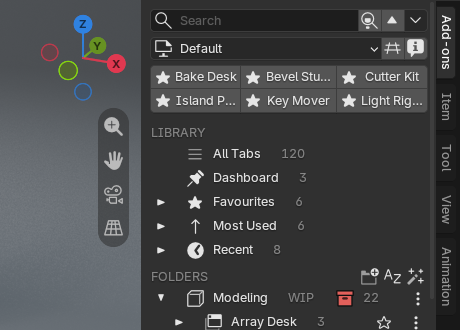
Simple mode: one Add-ons tab with Library, folders and a Fold button.

Look: PanelDial theme or your Blender theme

PanelDial Theme is graphite with colour accents. Follow Blender Theme takes your theme's colours, so the dial matches a light, grey or dark interface.

HowPreferences ▸ Add-ons ▸ PanelDial ▸ Look

PanelDial Theme, then Follow Blender Theme in four Blender presets.
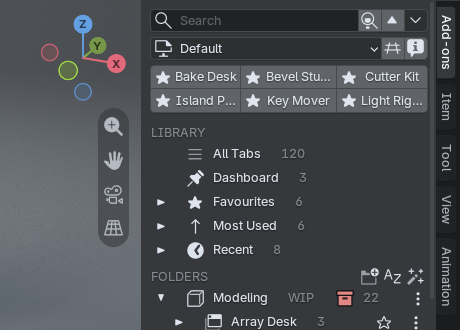
Blender Dark theme
Blender Dark
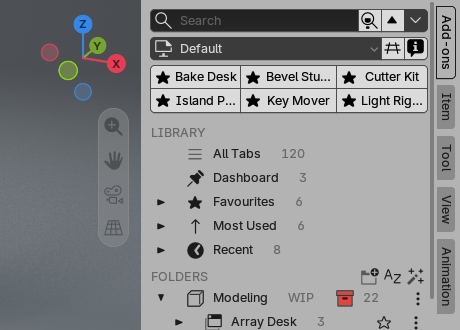
Blender Light theme
Blender Light
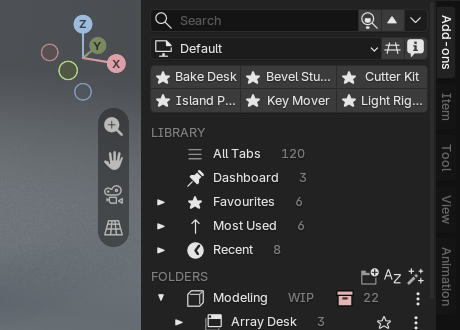
Deep Grey theme
Deep Grey
White theme
White

The sidebar tree uses Blender's own widgets, so it matches any theme.

UI scale and small editors

The dial follows Blender's Resolution Scale. In a small editor it switches to one ring with pages, and it always stays inside the editor.

HowInterface ▸ Resolution Scale · PanelDial ▸ Navigator Position

Resolution Scale, then a small editor with the compact one-ring layout.

Compact rows

Tighter rows in the sidebar tree for small screens and long lists.

HowPreferences ▸ Add-ons ▸ PanelDial ▸ Compact Rows

Compact Rows Off
Off
Compact Rows On
On

Compact Rows fits more of a long folder on a small screen.

Every editor has its own tree

The dial works in the 3D Viewport, Image and UV, Node Editors, Sequencer, Movie Clip, Graph, Dope Sheet and NLA. What you opened is remembered per editor.

HowPreferences ▸ Add-ons ▸ PanelDial ▸ Editors switches single editors off

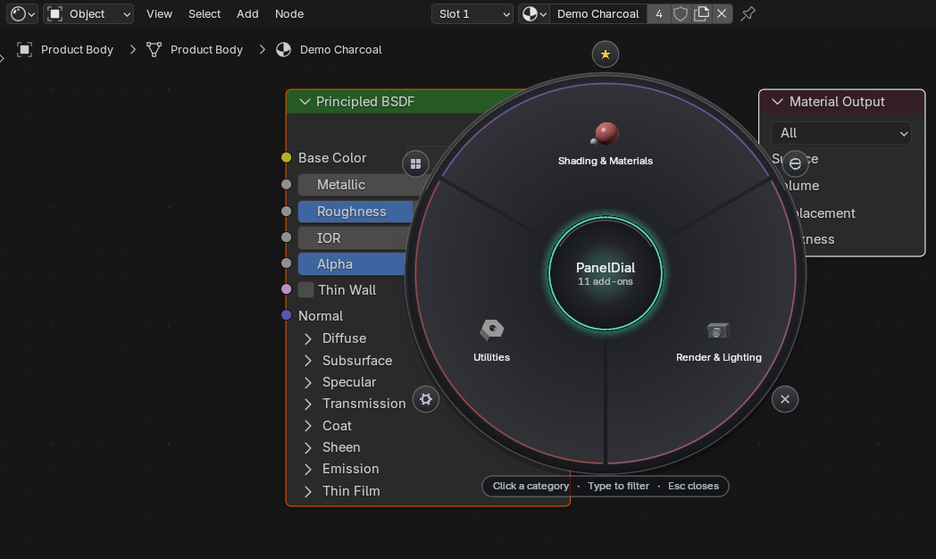
The Node Editor has its own dial, with the add-ons that have panels there.

05 · Safe and compatible

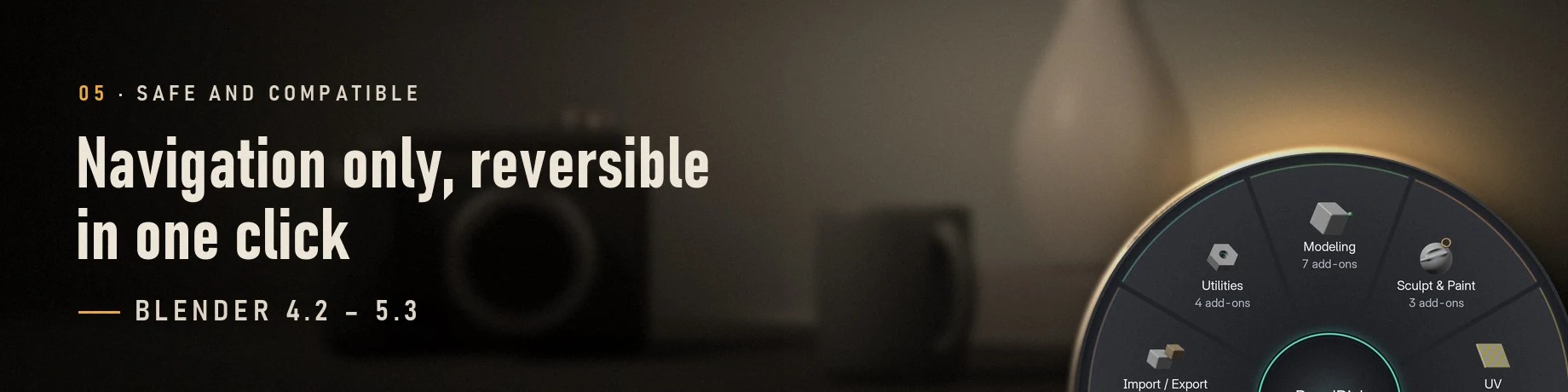
Navigation only, reversible in one click

PanelDial decides which panels you see. It never draws, changes or touches the add-ons themselves.

Restore Blender's sidebar

One command puts every add-on tab back where its add-on placed it. Your layout is kept for later, and disabling PanelDial does the same restore.

Howtree menu (⌄) ▸ Restore Blender's Sidebar · back: Preferences ▸ Turn On Sidebar Tree

One command gives every tab back to Blender. Turning the tree on again brings your layout back.

Your layout: saved outside .blend files

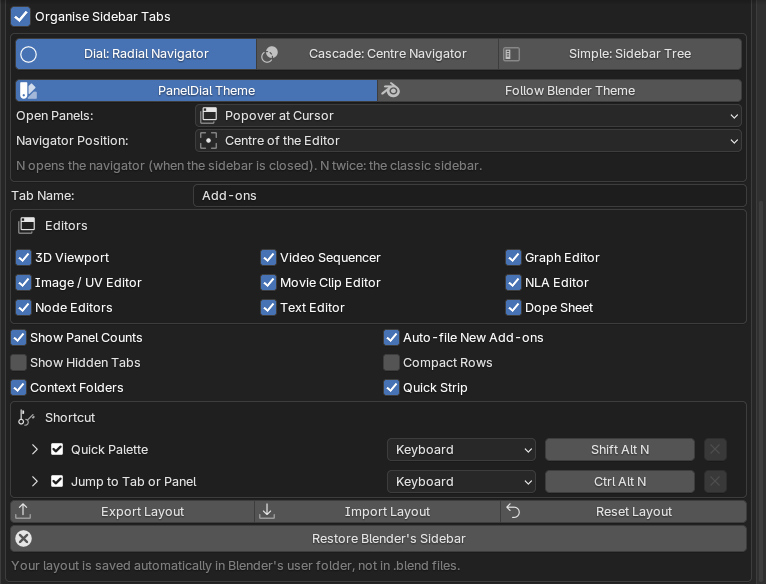
Folders, profiles and pins are saved in Blender's user folder, the same in every file. Undo and Load Factory Settings leave them alone; Export writes one small .json file.

HowPreferences ▸ Add-ons ▸ PanelDial ▸ Export / Import / Reset Layout

Every option in one preferences panel, including Export, Import and Reset Layout.

Safe by design

  • Blender's own tabs (Item, Tool, View) and the add-ons that ship inside Blender keep their normal place.
  • Any add-on tab can stay outside the tree: tab menu (⋯) ▸ Keep as Normal Tab.
  • The workspace setting Filter Add-ons still works; filtered add-ons are hidden in the tree too.
  • Add-ons you enable or disable while Blender runs appear in or leave the tree within about two seconds.
  • N twice gives the classic sidebar. With the sidebar open, N closes it as always.

What it does not do

  • It does not draw another add-on's panel. Every panel is drawn by its own add-on.
  • It does not disable, uninstall or modify add-ons, their files or their settings.
  • A few add-ons draw their own tab buttons or use popovers. They keep working but are not part of the tree.
  • In the Text Editor there is no dial, because N types a letter there. The sidebar tree is available.
Blender4.2 – 5.34.2 · 4.5 · 5.1 · 5.2 · 5.3 tested

Compatibility

Built for the Blender you run.

Blender
4.2 to 5.3. Tested on 4.2, 4.5, 5.1, 5.2 and 5.3.
Install
Extension .zip: Preferences ▸ Get Extensions ▸ menu (⌄) ▸ Install from Disk…
System
Tested on Windows. Pure Python with no platform-specific code.
Editors
3D Viewport, Image / UV, Node Editors, Video Sequencer, Movie Clip, Graph Editor, Dope Sheet, NLA; tree also in the Text Editor
Permissions
Files only: saving the layout and importing or exporting layout files
Licence
GPL-3.0-or-later

Launch −44 % · first 100 buyers

Get PanelDial

$9$16−44 %$16

Launch −44 %: $9 instead of $16, first 100 buyers. Every feature on this page included.

Every feature on this page included.

Buy on the store

Blender 4.2 to 5.3 · GPL-3.0-or-later

What you get

  • paneldial-1.0.0.zip, a Blender extension you install from disk in Blender 4.2 to 5.3
  • The dial, the cascade navigator and the sidebar tree, with every feature on this page
  • The built-in list of 1,328 known add-ons for Auto Organise
  • A PDF user guide covering every feature and shortcut

Support: send a message from the store page. Please include your Blender version and the name of the add-on that misbehaves.

Questions

Before you buy

Does PanelDial add add-ons or panels to my Blender?

No. The add-ons in the images are examples. PanelDial ships no other add-ons and lists only the add-ons you have installed: with two add-ons installed, the dial shows those two.

Does PanelDial change my add-ons?

No. Their files and settings stay as they are; each panel is drawn by its own add-on. With PanelDial on, their tabs sit under one Add-ons tab; turn it off or uninstall it and every tab goes back.

How do I get the normal sidebar back?

For a moment: press N twice. Always: set Mode to Simple. Completely: tree menu (⌄) ▸ Restore Blender's Sidebar, or disable or uninstall the add-on. Every tab returns to its own place.

Auto Organise put a tab in the wrong folder. What now?

Tab menu (⋯) ▸ Move to Folder. A tab you place by hand stays there; Auto Organise does not move it again.

I install new add-ons often. Do I have to sort them?

No. With Auto-file New Add-ons on, a new add-on goes into its folder within about two seconds and is marked NEW for three days.

An add-on is missing from the tree.

Check tree menu (⌄) ▸ Show Hidden Tabs and the “Kept as normal tabs” list. Blender's own tabs, bundled add-ons and add-ons that draw their own tab buttons keep their normal place on purpose.

Is the layout stored in my .blend files?

No. It is stored in Blender's user folder and is the same in every file. Export Layout makes a backup you can also share.

Can my team use the same layout?

Yes. Export Layout writes one .json file with all profiles; a teammate loads it with Import Layout. Usage counts are not included.

Can I change the shortcuts?

Jump (Ctrl Alt N) and Quick Palette (Shift Alt N) can be changed in Preferences ▸ Add-ons ▸ PanelDial ▸ Shortcuts.

A folder keeps opening by itself.

That folder has a context rule. Folder menu (⋯) ▸ Show by Context… ▸ untick Follow the context, or switch all rules off with tree menu (⌄) ▸ Context Folders.

Does Insights remove add-ons I do not use?

No. Insights is read only.

Does it work on macOS and Linux?

PanelDial is pure Python with no platform-specific code. It has been tested on Windows. If something behaves differently on your system, send a message from the store page.

Changelog

1.0.0

First release: the dial, the cascade navigator and the sidebar tree; Auto Organise; context folders; workspace profiles; Dashboard; Quick Palette; Search and Jump; Add-on Insights; PanelDial theme or your Blender theme. Blender 4.2 to 5.3.